

Register for Classes
You can register for classes online or in person at one of our campuses.
Enrollment Services Office Hours
Monday – Friday
8:00 a.m. – 4:30 p.m.
Closed on holidays and on Fridays in June and July
Fond du Lac
235 N National Ave.
Fond du Lac, WI 54935
West Bend
2151 N Main St.
West Bend, WI 53090
Beaver Dam
700 Gould St.
Beaver Dam, WI 53916
Horicon Regional Center
1210 Wrucke St.
Horicon, WI 53032
Registration Options & Steps
Select your student type from the options below and follow the steps listed to register.
Who are Non-Program Course Takers?
- Students from other colleges who want to take MPTC class(es) and transfer them back to the school they currently attend.
- Members of the general public who want to attempt an MPTC undergraduate level course (i.e. English, Math, Psychology or a course in one of our Degree, Diploma, or Certificate programs.)
- Students planning to pursue an MPTC degree, diploma, or certificate who haven’t completed the application process yet.
PLEASE NOTE: Not all courses are open to Non-Program Course Takers and prior approval is required before completing the registration process for any courses which contain pre-requisites.
If the course you would like to register for does not contain pre-requisites, you do not need to request prior approval.
- Skip the request prior approval section and view the course registration options and open registration information below.
Request prior approval or request information about the process:
- Complete a Pre-Requisite Override Request Form: Include class title, course number (xxx-xxx) and 5-digit CRN
- You will be required to create or log into a Dynamic Forms account to complete the registration form.
-
- If you already have a Dynamic Forms account or once you have created one, navigate back to the MPTC Registration Form link you need to access and use your verified username and password to log in.
You may need to provide your high school transcripts, previous college transcripts, AP scores, and/or ACT/SAT scores to obtain permission to register
for a course(s).
Have you already received prior approval and would like to register for class?
Non-Program Course Takers are able to register for courses during MPTC’s open registration periods.
Open registration dates can be found on MPTC’s Class Offerings page.
- Click the tab of the corresponding term for which you wish to register.
- Note: Course title, course number (xxx-xxx) and 5 digit CRN will be needed for registration.
NOTE: If the course you are looking to take is in a term that is not yet open, we will not be able to process your registration at this time.
Course registration options:
-
- Log into myMPTC Student
Select “myMPTC”
Select “My Student Center”
Select “Registration and Planning”
Select “Register for Classes”
Select Term and click “Continue”
Enter the class CRNs on the “Enter CRNs” tab and click “Add to Summary”
Click “Submit” to complete registration - Submit an Electronic Registration Form: Include class title, course number (xxx-xxx) and 5-digit CRN
- You will be required to create or log into a Dynamic Forms account to complete the registration form.
-
- If you already have a Dynamic Forms account or once you have created one, navigate back to the MPTC Registration Form link you need to access and use your verified username and password to log in.
- In person: Stop by Enrollment Services at any of our campuses to register in person
- Log into myMPTC Student
IMPORTANT: Submitting a registration form does not guarantee placement into selected classes.
Your registration is not considered complete until you have received a confirmation email from Enrollment Services, which will include tuition due and a course schedule.
Pay course tuition and fees:
- View and pay your tuition balance by logging into myMPTC Student > Max Pay.
- e-Check is a safe, secure way to make online payments and skip the convenience fee.
- A convenience fee for credit/debit card payments will be assessed by the payment processor.
- If you haven’t set up your Moraine Park Student account, follow these instructions to open your myMPTC account.
- Questions? Contact Student Financial Services 920-924-3124 or sfs@morainepark.edu
Returning program students are students who are not new to Moraine Park, currently in a program of study, and are returning after at least one semester of enrollment.
1. View Important Student Dates to determine when you can register.
2. View Class Offerings to search for course options.
- Click the tab of the corresponding term for which you wish to register.
- Note: Course title, course number (xxx-xxx) and 5 digit CRN will be needed for registration.
3. Register for Classes
- Online:
- Log into myMPTC Student
- Select “myMPTC”
- Select “My Student Center”
- Select “Registration and Planning”
- Select “Register for Classes”
- Select Term and click “Continue”
- Enter the class CRNs on the “Enter CRNs” tab and click “Add to Summary”
- Click “Submit” to complete registration
- In person: Stop by Enrollment Services at any of our campuses to register in person.
4. Pay Your Course Fees
- View and pay your tuition balance by logging into myMPTC Student > Max Pay.
- e-Check is a safe, secure way to make online payments and skip the convenience fee.
- A convenience fee for credit/debit card payments will be assessed by the payment processor.
- Questions? Contact Student Financial Services 920-924-3124 or sfs@morainepark.edu
New program students are students who have not had prior program enrollment at Moraine Park. New program students may register when new program registration begins.
1. View Important Student Dates to determine when you can register.
2. View Class Offerings to search for course options.
- Click the tab of the corresponding term for which you wish to register.
- Note: Course title, course number (xxx-xxx) and 5 digit CRN will be needed for registration.
3. Register for Classes
- Online:
- Log into myMPTC Student
- Select “myMPTC”
- Select “My Student Center”
- Select “Registration and Planning”
- Select “Register for Classes”
- Select Term and click “Continue”
- Enter the class CRNs on the “Enter CRNs” tab and click “Add to Summary”
- Click “Submit” to complete registration
- In person: Stop by Enrollment Services at any of our campuses to register in person.
4. Pay Your Course Fees
-
- View and pay your tuition balance by logging into myMPTC Student > Max Pay.
- e-Check is a safe, secure way to make online payments and skip the convenience fee.
- A convenience fee for credit/debit card payments will be assessed by the payment processor.
- Questions? Contact Student Financial Services 920-924-3124 or sfs@morainepark.edu
- View and pay your tuition balance by logging into myMPTC Student > Max Pay.
Start College Now
The Start College Now program allows eligible 11th and 12th grade students who are currently enrolled in a Wisconsin public high school to enroll in Moraine Park courses to earn high school and college credit at the same time. Students apply directly to their high school for approval to the Start College Now program.
The school district will pay 100% of the tuition costs and non-consumable course materials.
*Students who are not successful in Start College Now courses may need to reimburse school districts for the course and book fees.
After Moraine Park Technical College receives the approved application from the high school, a Recruiter will contact the student/parent/guardian with details regarding the registration process, dates and deadlines.
You can view the Start College Now web page for an overview of eligibility and application information, applicable registration dates and answers to frequently asked questions.
When you are ready to register, refer to the instructions listed under the Non-Program Course Taker tab above.
Dual Credit
Dual enrollment is an umbrella term that includes a variety of programs or ways a high school student can earn college credit while still in high school.
Dual enrollment makes college more affordable for families and introduces students to college-level coursework before they fully immerse themselves in college.
When you are ready to register, refer to the instructions listed under the Non-Program Course Taker tab above.
Homeschool Students
Moraine Park Technical College is dedicated to supporting homeschoolers in our community and want to help you with any questions you have regarding higher education. Visit our Resources for Homeschool Students web page and “imagine what’s next!”
When you are ready to register, refer to the instructions listed under the Non-Program Course Taker tab above.
Students under 16 years of age and their parent/guardian must complete a Request to Attend Classes & Registration form by following the steps below.
- Complete and submit the Request to Attend Classes & Registration form.
- You will receive approval/denial notification once your request has been reviewed by our Registrar’s Office.
- The parent/guardian may also be required to enroll in the course and attend as a “regular” student in the class.
- If the class occurs during regular K-12 school hours, written permission from the school district will be required.
- If you need assistance, please call Enrollment Services at: 800-472-4554 TTY/VP: Use Relay/VR
Notes:
- Registration is open now for the 2026-2027 (202740) Non-Credit term. (June 1, 2026 – May 31, 2027)
- Classes marked (ed2go ONLINE) are provided in partnership with ed2go and follow a separate, external registration and payment process linked in the class description.
Step 1: Explore Classes
- Visit morainepark.edu/ce and choose between Personal Enrichment classes for personal growth or Professional Development classes to advance your career.
- Select a class, click “See Class Details,” and use the 5-digit CRN number to find important information about the class, including capacity, dates, times, instructor and cost. Write down the course title, course number (xxx-xxx), and 5-digit CRN for Step 2.
Step 2: Register for Classes
Interested in Classes marked (ed2go ONLINE)?
Classes marked (ed2go ONLINE) are provided in partnership with ed2go and follow a separate, external registration and payment process linked in the class description.
If you don’t have a myMPTC Student account:
Submit an Electronic Registration Form using the class title, course number (xxx-xxx) and 5-digit CRN:
- Create or log in to your Dynamic Forms account to access the form (View Dynamic Forms account creation instructions)
- Complete the Electronic Registration Form with your Dynamic Forms account username and password.
Students with a myMPTC Student account:
Register online through your myMPTC Student account:
- Log into myMPTC Student
- Select “myMPTC”
- Select “My Student Center”
- Select “Registration and Planning”
- Select “Register for Classes”
- Select Term and click “Continue”
- Enter the class CRNs on the “Enter CRNs” tab and click “Add to Summary”
- Click “Submit” to complete registration
Register In Person:
You can also stop by Enrollment Services at any campus to register in person. See the Register for Classes page section above for contact information and hours.
Step 3: Pay Class Fee
Class Fee Overview:
- Classes marked (ed2go ONLINE) are provided in partnership with ed2go and follow a separate, external registration and payment process linked in the class description.
- Class fees include tuition and classroom/lab material fees. Out-of-state residents pay an additional $78.73 per credit.
- Class fees do not include textbooks or other supplies unless noted.
- Senior discounts are available for seniors 62 and over for most classes.
- Tuition is due within 3 business days of registration.
If you don’t have a myMPTC Student account:
Visit the Guest Checkout link to pay by credit/debit card or electronic check (ACH).
- Select “Student Tuition Payments”
- Select “Non-Credit Term”
- Enter Amount
- Add to Cart
- Select “Checkout”
-
Click “Continue“
-
Enter your MPTC ID if known OR enter course number/title. (Must be 9 characters)
- Continue to enter payment information.
- e-Check is a safe, secure way to make online payments and skip the convenience fee.
- A convenience fee for credit/debit card payments will be assessed by the payment processor.
Students with a myMPTC Student account:
View and pay your tuition balance by logging into myMPTC Student and visiting “Max Pay.”
e-Check is a safe, secure way to make online payments and skip the convenience fee. A convenience fee for credit/debit card payments will be assessed by the payment processor.
Pay In Person:
- To make a payment in person in West Bend or Beaver Dam, visit Enrollment Services during regular business hours
- To make a payment in person at the Fond du Lac Campus, visit Student Financial Services during regular business hours.
Questions? Please contact Student Financial Services at sfs@morainepark.edu or 920-924-3124 TTY/VP: Use Relay/VRS, and we will gladly hold your registration for up to three days.
Questions and Contacts
Please reach out with any questions.
Community Ed – Questions about Classes
- Phone: 920-887-4405 TTY/VP: Use Relay/VRS
- Email: communityed@morainepark.edu
- Mail: MPTC Continuing Education, 235 N National Ave., Fond du Lac, WI 54936
Enrollment Services – Questions about the Registration Process
- Phone: 800-472-4554 TTY/VP: Use Relay/VRS
- Email: mptcenrollmentservices@morainepark.edu
- Enrollment Services is closed on holidays and on Fridays in June & July. We are also closed for winter break at the end of December.
Student Financial Services – Questions about Fee Payments
- Phone: 920-924-3124 TTY/VP: Use Relay/VRS
- Email: sfs@morainepark.edu
- Mail: MPTC Student Financial Services, PO Box 1940, Fond du Lac, WI 54936-1940 (Please include Student ID number)
More
- Class schedules and tuition and fees are subject to change without notice and are not to be considered as contractual guarantees for any course.
- If a class is full, please request to be placed on the waitlist. Waitlists are compiled on a “first-come, first-served” basis. Students on a waitlist for personal enrichment or continuing education courses will be notified via their personal email. Students have 24 hours to reply to the email or the next person on the waitlist will be contacted. Please inform Enrollment Services if your contact information changes.
- Audit policy: Students may choose to audit undergraduate (UG) level courses to gain a general understanding of the subject matter. The student must submit a completed Audit Course Intent Form at the time of registration. Audited classes do not earn credit, and standard tuition, fees and withdrawal policies apply. Students auditing a course may not be added to a wait list.
Online registration via electronic form is required for Fire and EMS Continuing Education Courses.
- View Sponsor instructions and requirements
- View Student registration instructions & register for courses
Ways to Register for Traffic Safety Courses:
Online via Electronic Registration form or in person.
- View registration instructions & register for a course
- View Traffic Safety course descriptions and FAQ’s
GED/HSED Orientation at MPTC
Orientation is the first step for students who desire to achieve a GED or HSED credential. You must be at least 18 1/2 years old by the date of the first class, or your high school class has graduated. For more information or to book an orientation, contact the Student Success Center at the campus of your choice.
Nursing Assistant
Students MUST be admitted to the Nursing Assistant program before being eligible to register for the course. View the Nursing Assistant Program web page for application details, important due dates and program requirements such as the criminal background check and health/safety requirements (including COVID 19 vaccine).
EMT, Advanced EMT, or Paramedic Technician
Students MUST be admitted to a program before being eligible to register for courses. View the following program web pages for detailed information:
EMT Program
Advanced EMT Program
Paramedic Technician Program
Once admitted to a program, refer to the registration instructions listed under New Program Students tab above.
Add/Drop Classes Information
Option #1 – myMPTC Student Account
- Log into myMPTC Student
- Select “myMPTC”
- Select “My Student Center”
- Select “Registration and Planning”
- Select “Register for Classes”
- Select Term and click “Continue”
- Enter the class CRNs on the “Enter CRNs” tab and click “Add to Summary”
- Click “Submit” to complete registration
Option #2 – Add/Drop Form
Do you have a myMPTC account and do you know your myMPTC username and password?
YES –
Click here to complete an Add/Drop form. (Secure forms submission using your myMPTC username and password)
NO –
Create a Dynamic Forms account if you do not already have one (this account is separate from a myMPTC student account.)
Instructions for Creating a New Dynamic Forms Account.
- Once you have created your Dynamic Forms account, navigate back to this page and click here to access the Add/Drop form.
Option #3 – In-person
Stop by Enrollment Services at any of our campuses during regular business hours to add a class.
Option #1 – myMPTC Student Account
Note: Students cannot drop their last undergraduate-level course through self-service. To withdraw from their final course, they must submit an Add/Drop Form.
Why? Before dropping all enrolled courses, students should consult with their academic advisor and, if applicable, the Financial Aid Office to understand any academic, financial aid, or enrollment implications.
- Log into myMPTC Student
- Select “myMPTC”
- Select “My Student Center”
- Select “Registration and Planning”
- Select “Register for Classes”
- Select Term and click “Continue”
- Under Schedule Summary choose an “Action”
- Calculated drop options will be listed. If no drop option is available, it is too late to drop the course.
Option #2 – Add/Drop Form
Do you have a myMPTC account and do you know your myMPTC username and password?
YES –
Click here to complete an Add/Drop form. (Secure forms submission using your myMPTC username and password)
NO –
Create a Dynamic Forms account if you do not already have one (this account is separate from a myMPTC student account.)
Instructions for Creating a New Dynamic Forms Account.
- Once you have created your Dynamic Forms account, navigate back to this page and click here to access the Add/Drop form.
Option #3 – In-person
Stop by Enrollment Services at any of our campuses during regular business hours to drop a class.
FAQs & Additional Info
- Complete an Electronic Registration Form: include class title, course number (xxx-xxx) and 5-digit CRN.
-
- You will be required to create or log into a Dynamic Forms Account to complete the registration form.
(Once you have created one, navigate back to the Electronic Registration Form link above, use your username and password to log in.) - Helpful instructions to create a Dynamic Forms account.
- You will be required to create or log into a Dynamic Forms Account to complete the registration form.
- Or, stop by Enrollment Services at any of our campuses to register in person.
Questions?
Contact Enrollment Services during regular business hours: 920-924-3207
Auditing a Course
A student may audit a course to gain a general understanding of a subject matter. The student must submit a completed Audit Course Intent Form at the time of registration. (Forms can be requested from Enrollment Services.) A student may not change his/her registration status from audit to credit or vice versa once the course has started. All course prerequisites must be met at the time of registration. Only undergraduate (UG) level courses can be audited.
The college administration reserves the right to restrict the auditing of any course. Audit options are provided on a space-available basis. Students auditing a course may be administratively withdrawn (with a full refund) in the event that the course develops a waitlist with students seeking to take the course for credit. Students auditing a course may not be added to a wait list.
A student auditing a course must pay the same tuition and fees as a student enrolled for credit. Per the 1999 Wisconsin Act 154, individuals who are 60 years of age or older are exempt from paying tuition when auditing a course. Any age 60+ auditor must be a resident of Wisconsin and will be required to pay course material fees and all other applicable student fees.
Auditing a course requires a student to meet attendance requirements, participate in classroom activities and complete all assignments required for the course; however, they do not complete examinations. Students who complete these course requirements are assigned a grade of “AU” (audit). Students who fail to complete these course requirements receive a grade of “W” (withdrawn).
A student does not earn course credit for auditing a course. Audited courses may not be used to satisfy the prerequisites or requirements for other courses. Courses taken on an audit basis are not part of the student’s credit load for financial aid, veterans’ benefits, or for any other purpose for which the college is asked to certify a student’s enrollment status.
The college administration reserves the right to restrict the auditing of any course. Audit options are provided on a space-available basis. Students auditing a course may be administratively withdrawn (with a full refund) in the event that the course fills and students seek to enroll for credit.
Student Authorization for the Release of Educational Records
In compliance with the federal Family Education Rights and Privacy Act of 1974, Moraine Park is restricted from disclosing certain information from your student records.
You may grant MPTC permission to release information from your student records to a third party by completing and signing the Student Authorization for Release Form.
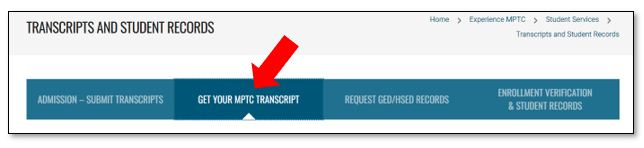
Navigate to Transcripts and Student Records > GET YOUR MPTC TRANSCRIPT
Tuition Refund/Late Withdrawal Appeals
Moraine Park Technical College students are responsible for knowing college academic policies as outlined in the College Catalog as well as the Academic Calendar.
The College does recognize that there are times when a student experiences an extenuating or unexpected emergency or hardship that interferes with the student’s ability to attend and/or successfully complete classes that may warrant an exception or appeal.
The Tuition Refund Appeal form or Late Withdrawal Form must be filled out completely and supporting documentation is required. At the time of a qualifying event, students are encouraged to work with their instructors to see if arrangements can be made to complete class work.
Third-Party Sponsorship Information
A third-party organization may sponsor a student’s enrollment by committing to paying a student’s tuition and fees.
For more information, visit the Third-Party Sponsor Information web page.
Why do I need a username and Student ID number?
You will need your Moraine Park username to access your student account and email.
- (example: sjohnson3)
Your Student ID number was assigned by Moraine Park Technical College and is unique to you. It is attached to your academic and financial records at the school and will be requested by staff during registration for classes or if you wish to receive information about your student records.
- (example: N00123456)
You are eligible to activate a student account if one of these criteria is met:
- You have been accepted into a Moraine Park Technical College program for previous, current or future term.
- You have registered for a class that begins in current term, future term, or began in previous term.
Do I Need to Open a Student Account?
Yes, if you are registered for an UNDERGRADUATE course(s) it is important to activate your account and regularly check your student email.
If you are taking Continuing Education/Personal Enrichment or Traffic Safety courses you are NOTrequired to set up an MPTC student account.
- However, you are welcome to set up your account if you would like the option to Pay online and register yourself for future courses.
Your Student Email is Crucial for Success
Once you register for a class or are admitted to a program, you’re assigned a student email account. This is how the College will send important information such as registration details, class cancelations, financial aid and payment notices, teacher messages, and more. We recommend that you check it daily.
Before you can set up your student email account, you will need to open your myMPTC Student account. Setting up your account will provide you with your username and allow you to set your own password. You will need your myMPTC username and password to set up your student email account.
- myMPTC username (example: sjohnson3)
- myMPTC password (the password you set when you opened your account)
What is Multi-factor Authentication (MFA)?
Multi-factor Authentication (MFA) is an additional layer of security that makes it harder for hackers to log in to your account. With MFA, you will use something you know (your password) with something you have (your phone) to confirm your identity when signing in.
Multi-factor authentication (MFA) is REQUIRED for everyone accessing Moraine Park online systems; this includes Canvas and the Microsoft online environment.
Forgot your password?
No problem, you can follow these instructions to reset it.
Helpful reminders regarding password complexity requirements.
- Must be at least 14 characters long
- Cannot include any part of your username, first name, or last name
- Must contain at least three of these four elements:
- upper case letter
- lower case letter
- number
- special character (not including the $ or @ symbols)