Facebook Pixel Tracking

Library Technology Support

If printing from a personal device please follow these Web Print instructions.

The simplest way to print is by logging using your MPTC login to a library desktop computer.

When your document is ready to print, choose print from the menu and then the library printer will be the default printer option. There will be a second confirmation box verifying the printing cost to your account. After clicking on “print” the print job will automatically print from the library printer/copier machine.

Students can add money to their PaperCut printing accounts when the balance is low. Check your balance by locating the little green P on the task bar or at myprint.morainepark.edu/user.

If paying by credit or debit card, students can login to their account using their MPTC login credentials at myprint.morainepark.edu/user. Then just select “add credit” to add funds to your papercut printing account.

Students can also add money at any campus library circulation desk with exact cash.

The Macs in the library have Adobe Creative Software. There is a Wacom screen connected to the Macs as well. This is for Graphic Design programs that allow students to draw with a stylus and use other tools.

There are computers with AutoCad software like Solidworks and Revit for students in the Mechanical Design and Architectural Design Technology as well as other Trades and Manufacturing programs. Ask your librarians about which computers have the program you are looking for!

Step 1: Go to libbyapp.com or download the Libby App on your phone.

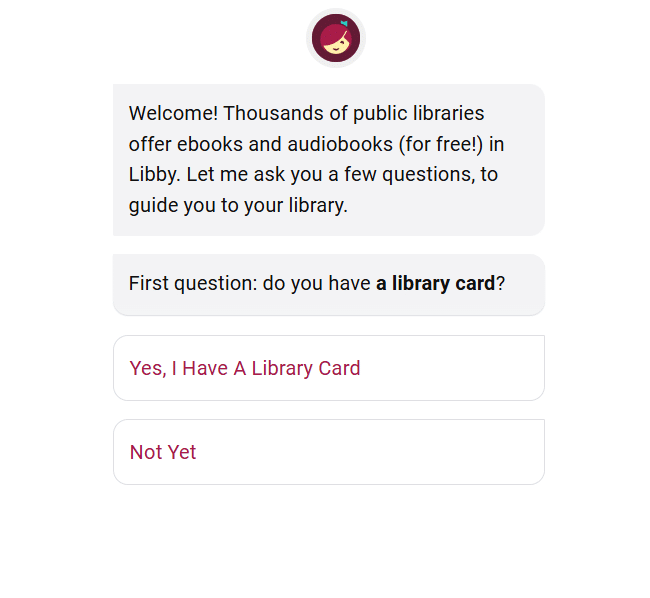
Step 2: Click on “Yes, I have a Library Card.”

Screenshot of Libbyapp.com with cursor pointed at "Yes, I Have A Library Card"

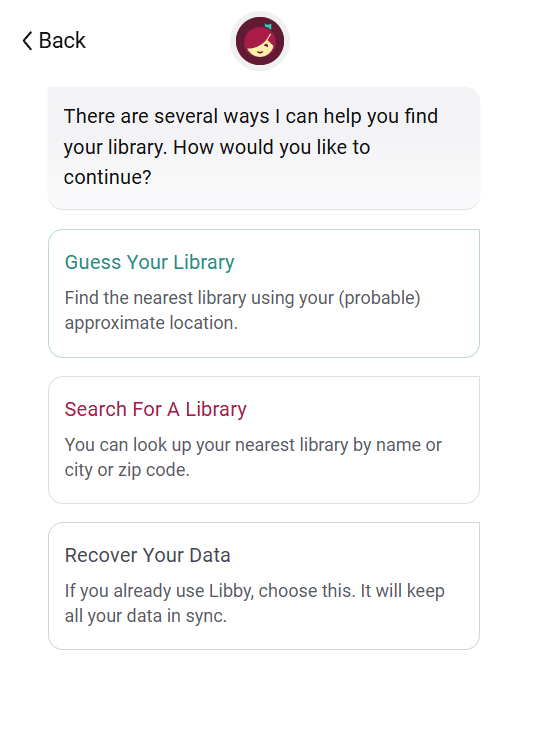
Step 3: Click on “Search for a Library.”

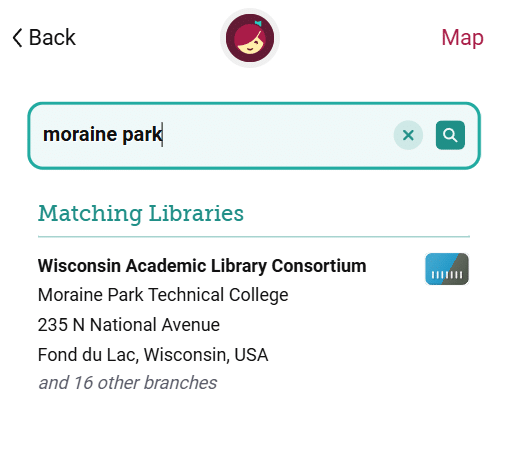
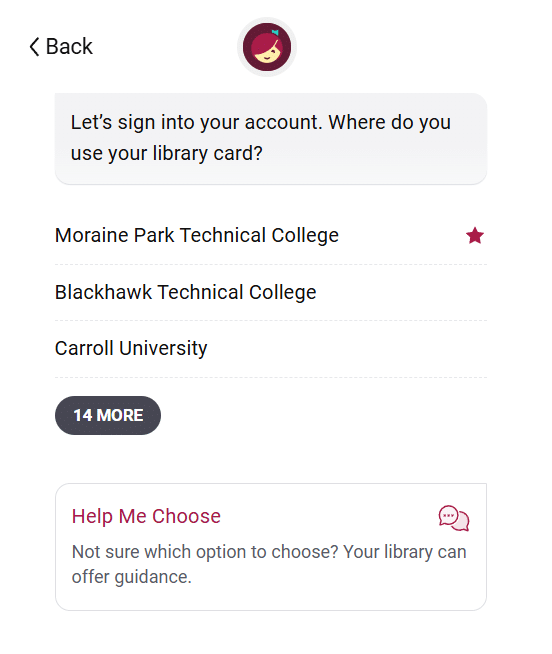
Step 4: Search for “Moraine Park,” which is part of the Wisconsin Academic Library Consortium. Select the “Moraine Park Technical College” option.

Screenshot of Libbyapp.com with cursor on Wisconsin Academic Library Consortium

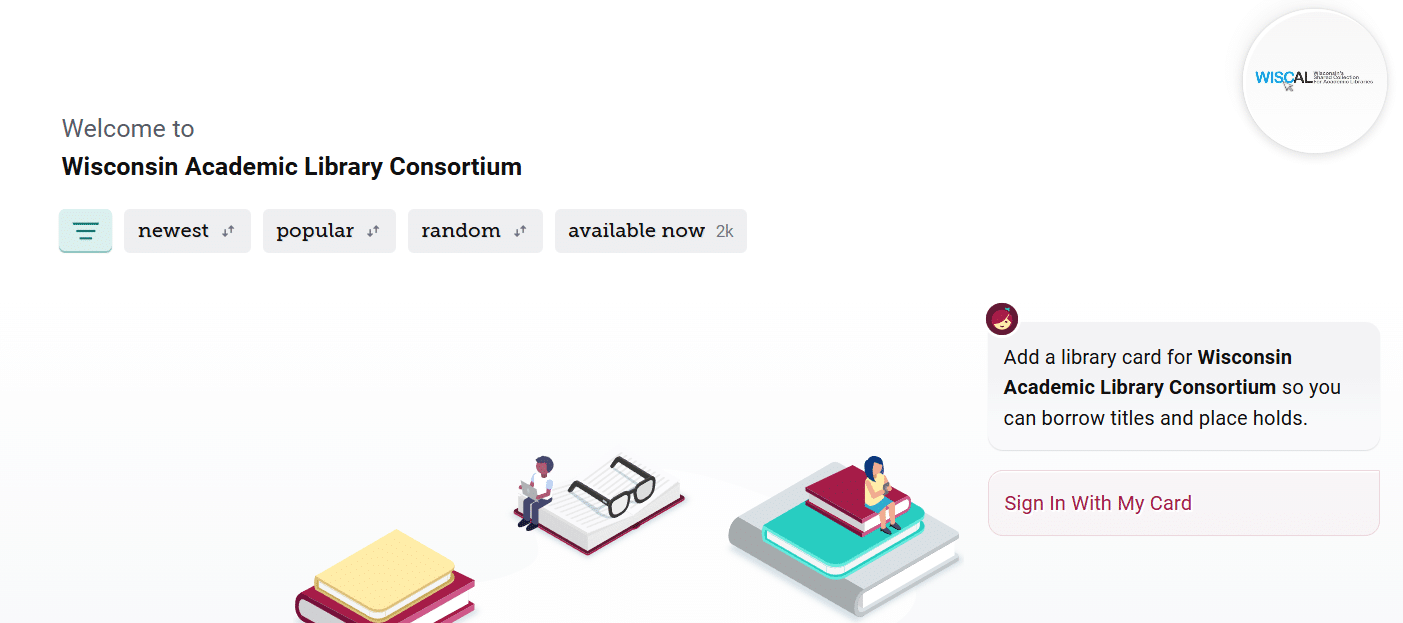
Step 5: Click on “Sign In with My Card.”

Screenshot of Libbyapp.com with cursor on "Sign In With My Card"

Step 6: Click on “Moraine Park Technical College.”

Screenshot of Libbyapp.com with cursor on "Moraine Park Technical College"

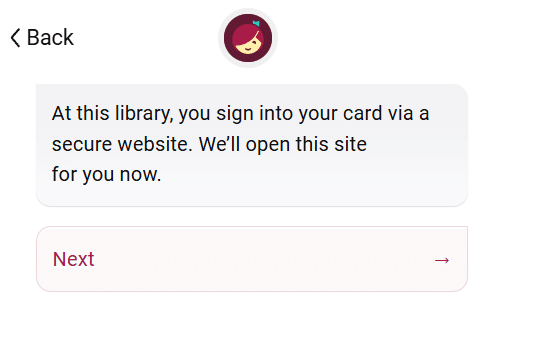
Step 7: Click “Next.”

Screenshot of Libbyapp.com with cursor on "Next"

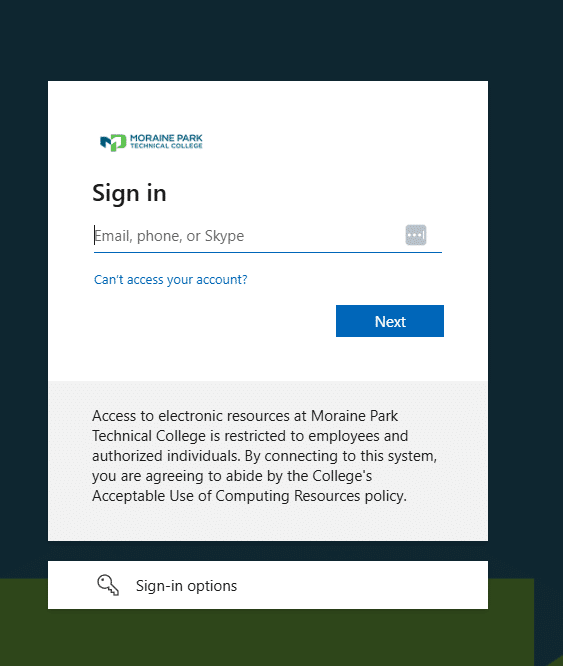
Step 8: Login using your Moraine Park credentials.

Screenshot of the Moraine Park Technical College sign-in page

The library catalog allows you to browse different materials located on all three campuses and online! Select “Sign In” at the top right corner and click the Moraine Park Students, Staff, and Faculty button. It may automatically connect with your MPTC student account via Single Sign On, or you may have to log in with your MPTC email and password.

Screenshot of the library catalog "Sign in selection"

Through your account, you can request a title to be shipped to your library of choice, and you will then receive a notification email that your book has arrived to be picked up.

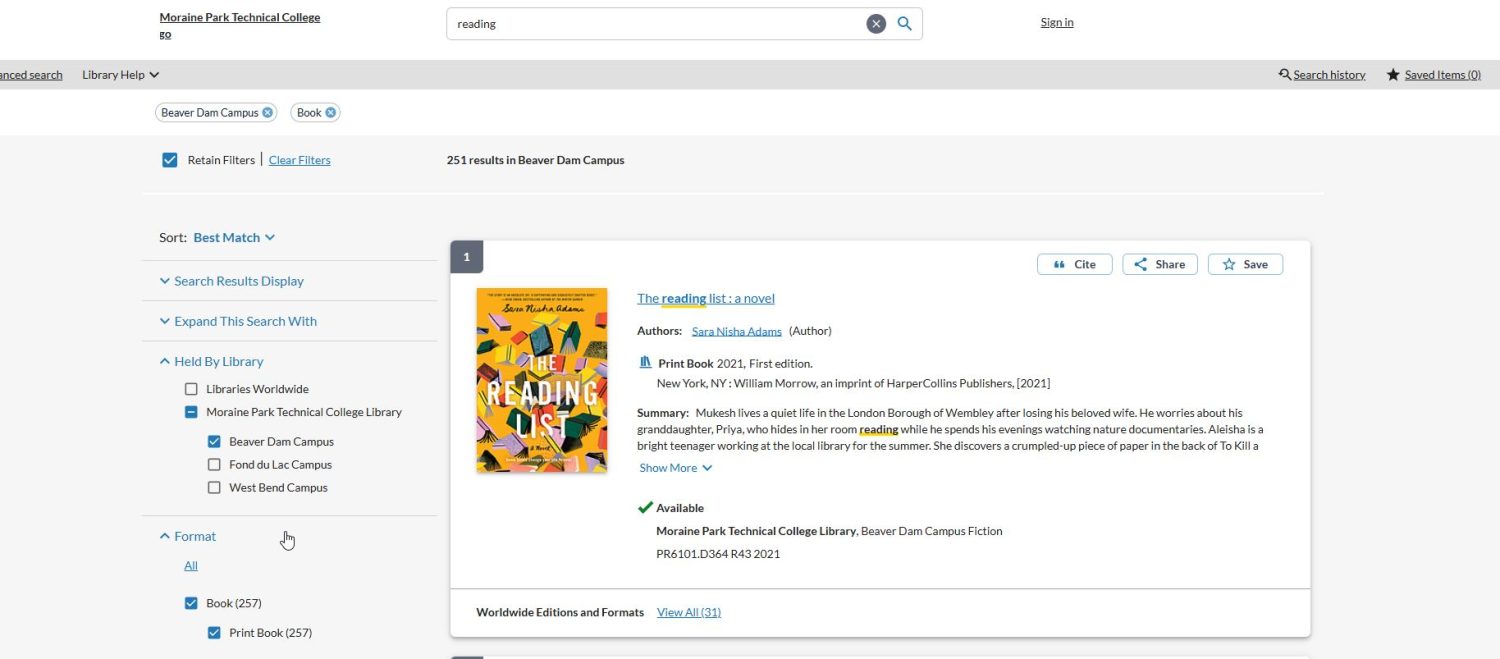
Screenshot of the library catalog with a book example

On this example search for items on reading; you can see on the left side of the screen there are several filter options. If you need a resource right away, you can limit the location to E-books or Article and access the content from home. Everything is available with your Moraine Park student account. It may also be helpful to limit by preferred Language and Publish Date to get the most relevant sources.

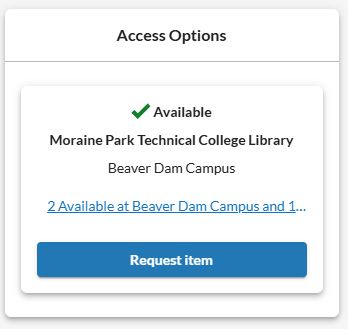
If a book you would like to have isn’t available on your specific campus, click the “Request item” button on the right side. This will place a hold on the book and send a notice to the librarians. The book will be mailed to your campus of choice to pick up. Articles are available to download in full text by clicking the Full Text button on the right side.

Screenshot of the library catalog "Access Options"

If you need to renew a book you currently have checked out, make sure you are signed into the catalog with your MPTC account.

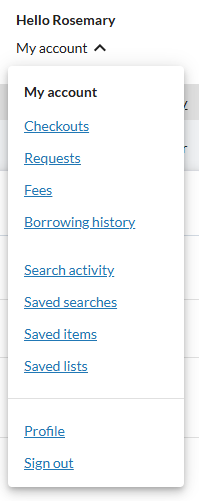
Then go to ‘Checkouts” under the drop-down menu by your name:

Screenshot of the library catalog "Account Options"
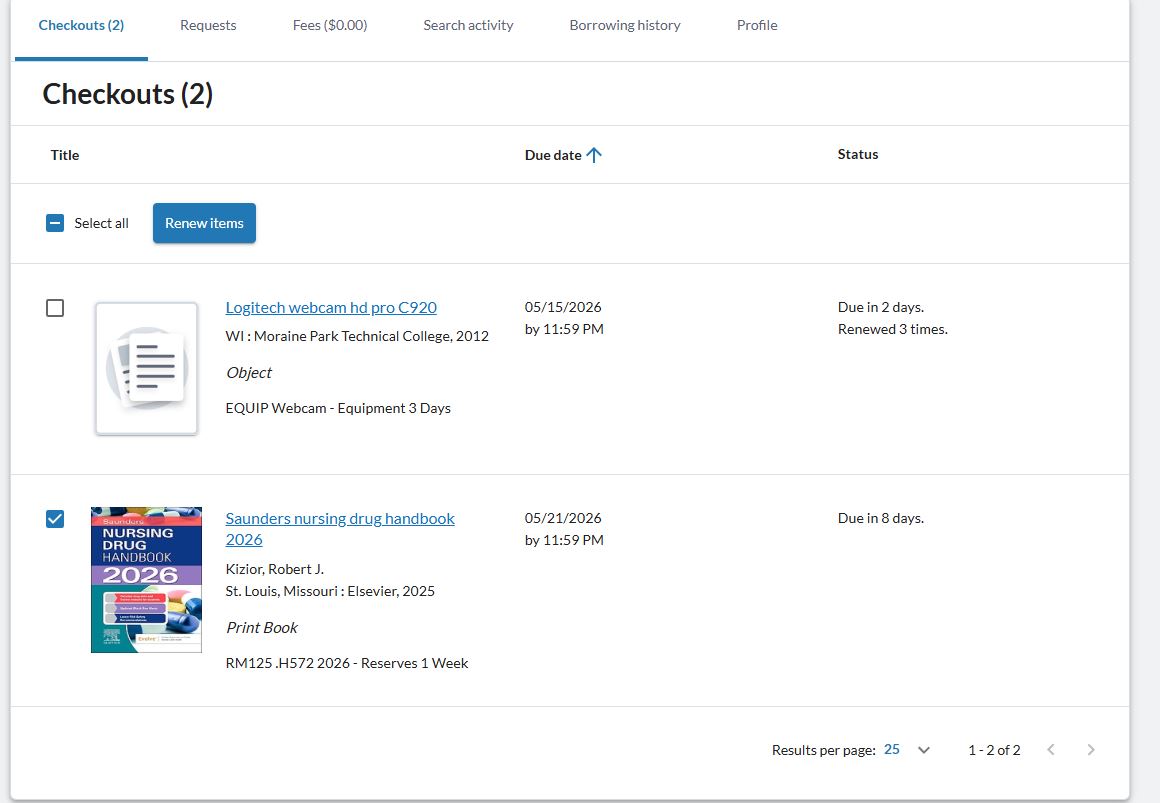
Screenshot of the library catalog "Renew Item"

You will then click the check box next to the book you would like to renew and click the blue “Renew Items” button at the top. If you have any trouble renewing or placing a hold on an item, reach out to your campus librarian!

The use of artificial intelligence (AI) can be both efficient and beneficial. A variety of tools are available, including ChatGPT, Copilot, and Gemini, among others.

Campus librarians are information literacy experts and can assist you in using AI tools appropriately and ethically for coursework and research.

Please keep the following in mind:

  • If the content is not your original thought or work, be sure to properly cite the source.
  • AI tools draw on information available online; always evaluate the accuracy and reliability of their responses.
  • Presenting AI-generated content as your own work constitutes plagiarism, just as submitting another student’s work would.