Facebook Pixel Tracking

Bookstore

eCampus Online Bookstore

  • Moraine Park’s official bookstore is available exclusively online via eCampus.
  • Using the Shop by Schedule option makes getting your books easy! It shows you all the required materials for the classes you’re registered for, so you can add everything to your cart in just a few clicks.
  • Log into eCampus using your Moraine Park email (username@student.morainepark.edu) and password.
  • Students are encouraged to check if textbook scholarships are available.

Helpful Information

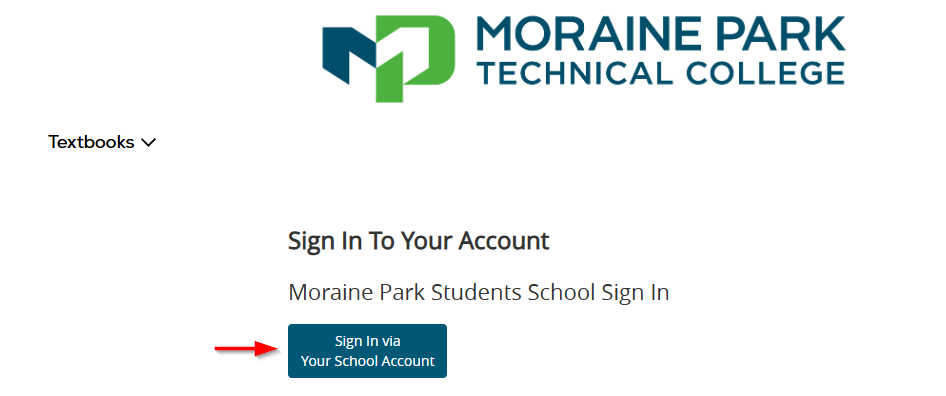
Step 1: Log in at to eCampus for Shop by Schedule using your full MPTC email (username@student.morainepark.edu) and password.

Screenshot of the Sign In To Your Account screen for Shop by Schedule.

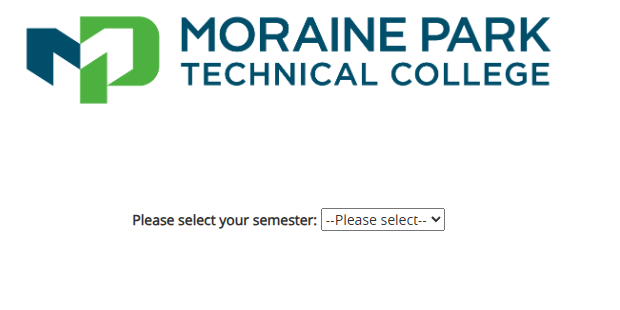
Step 2: Select the term from the dropdown. (This should make a list of course materials appear.)

Screenshot in Shop for Schedule asking you to select your semester.

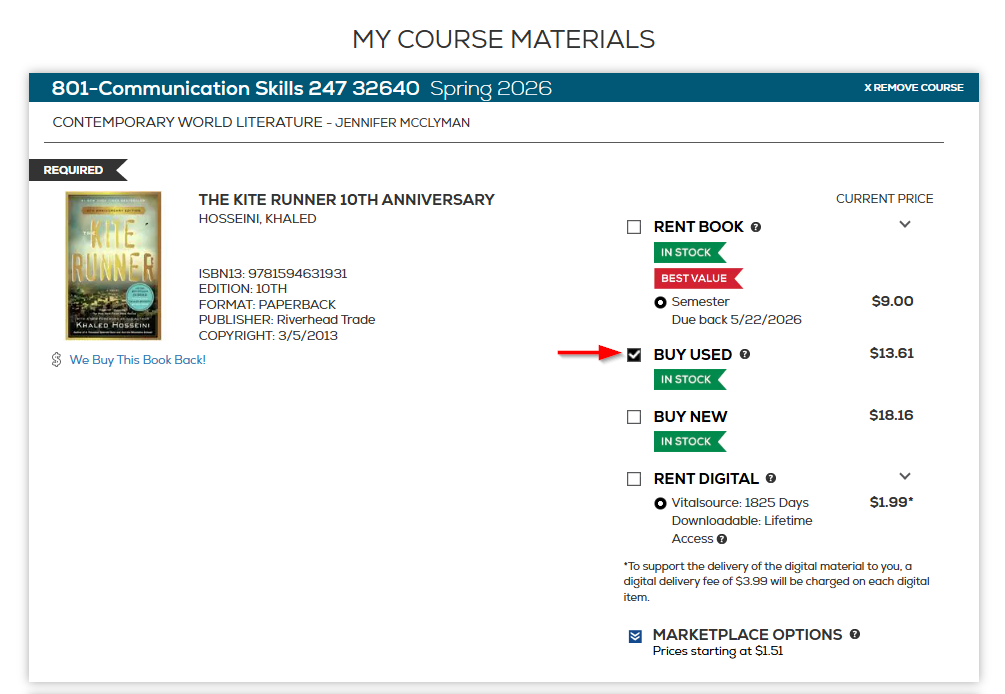
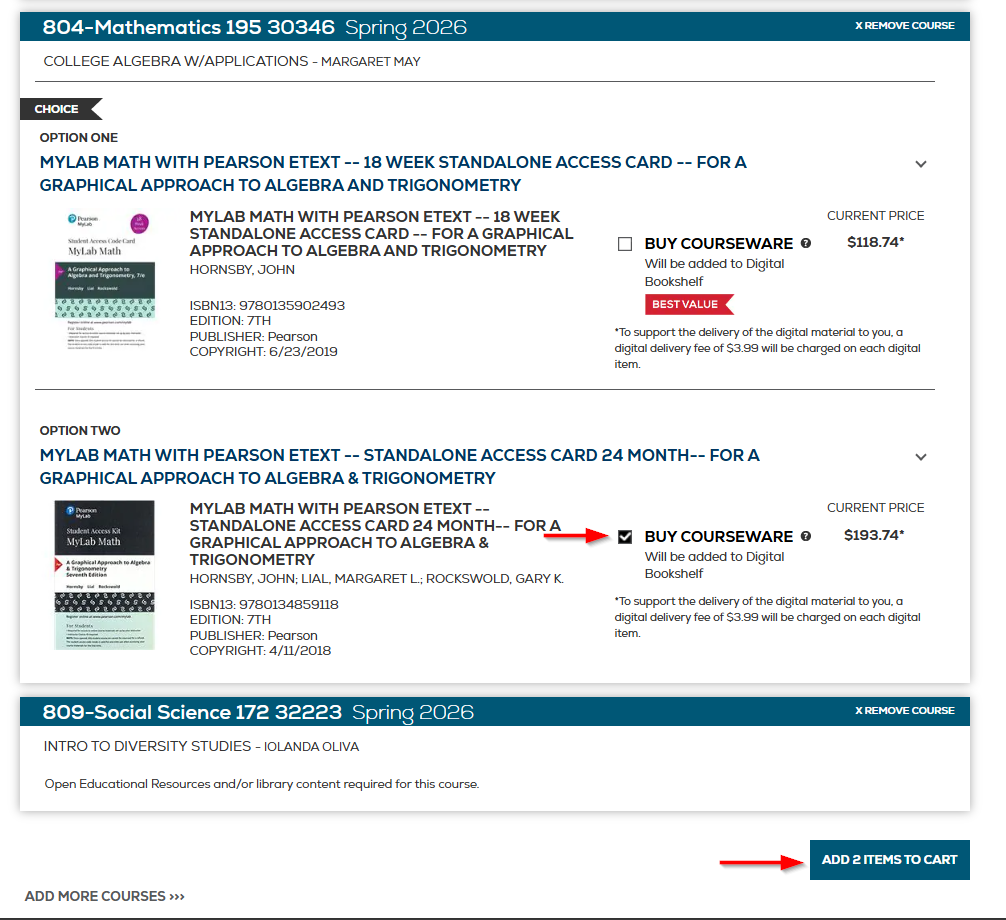
Step 3: Check a box for each item to indicate if you would like to Rent, Buy New, or Buy Used. After making your selection, click Add Item To Cart. (To view descriptions of the purchase options, go to the eCampus Helpdesk web page, click “Placing Your Order” then click “Purchase Options Explained”.)

NOTE: For certain programs the same book is required for multiple classes.

  • Once the book it added to your cart it will show as “Qty 2” or “Qty 3”.
  • You should delete the extra books and only purchase one.
Screenshot in Shop for Schedule showing the book, and options to rent, buy new, or buy used, along with the add 1 item to cart button.

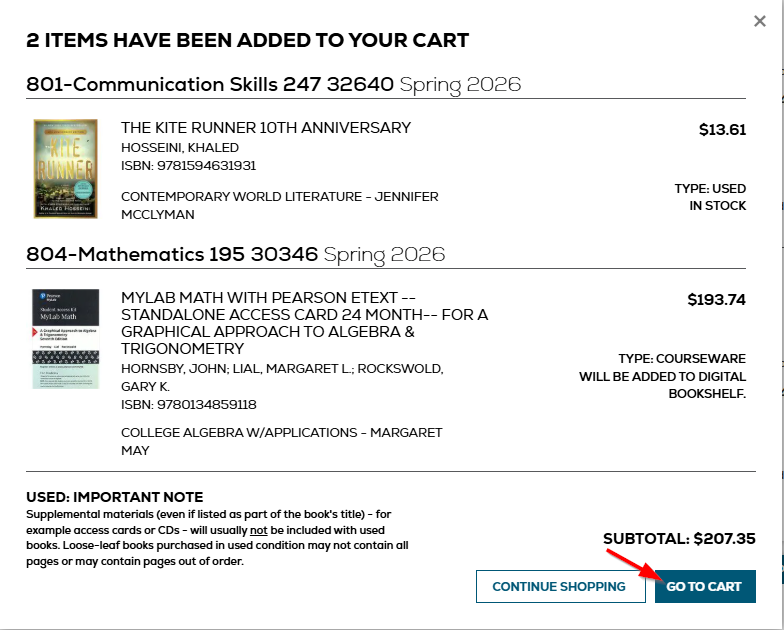
Step 4: When you are finished adding items, click Go To Cart.

Screenshot in Shop for Schedule with a red arrow pointing to the Go To Cart button.

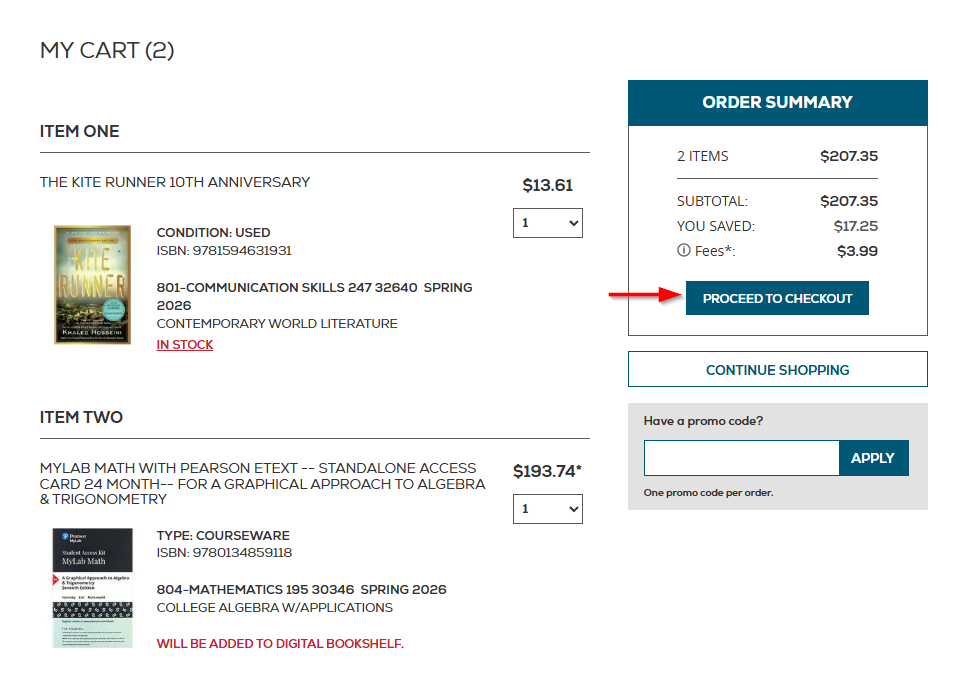
Step 5: Click Proceed To Checkout.

Screenshot in Shop for Schedule with a red arrow pointing to the Proceed to Checkout button.

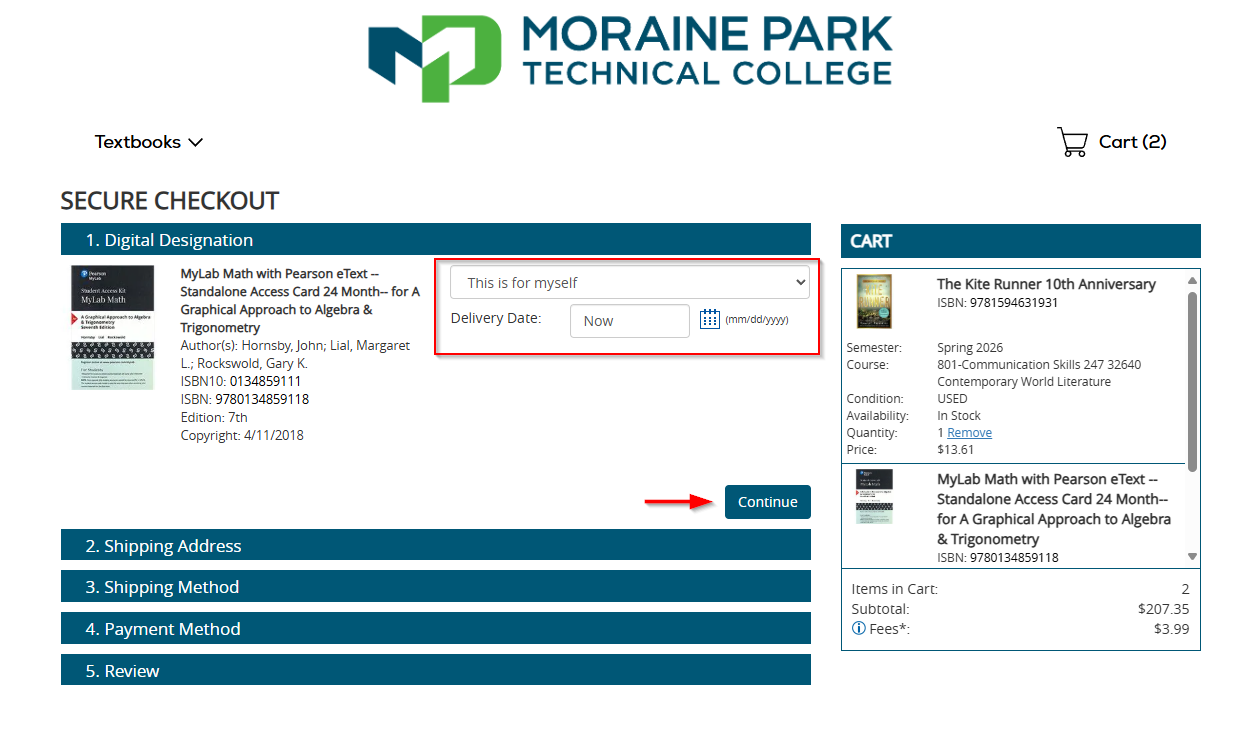
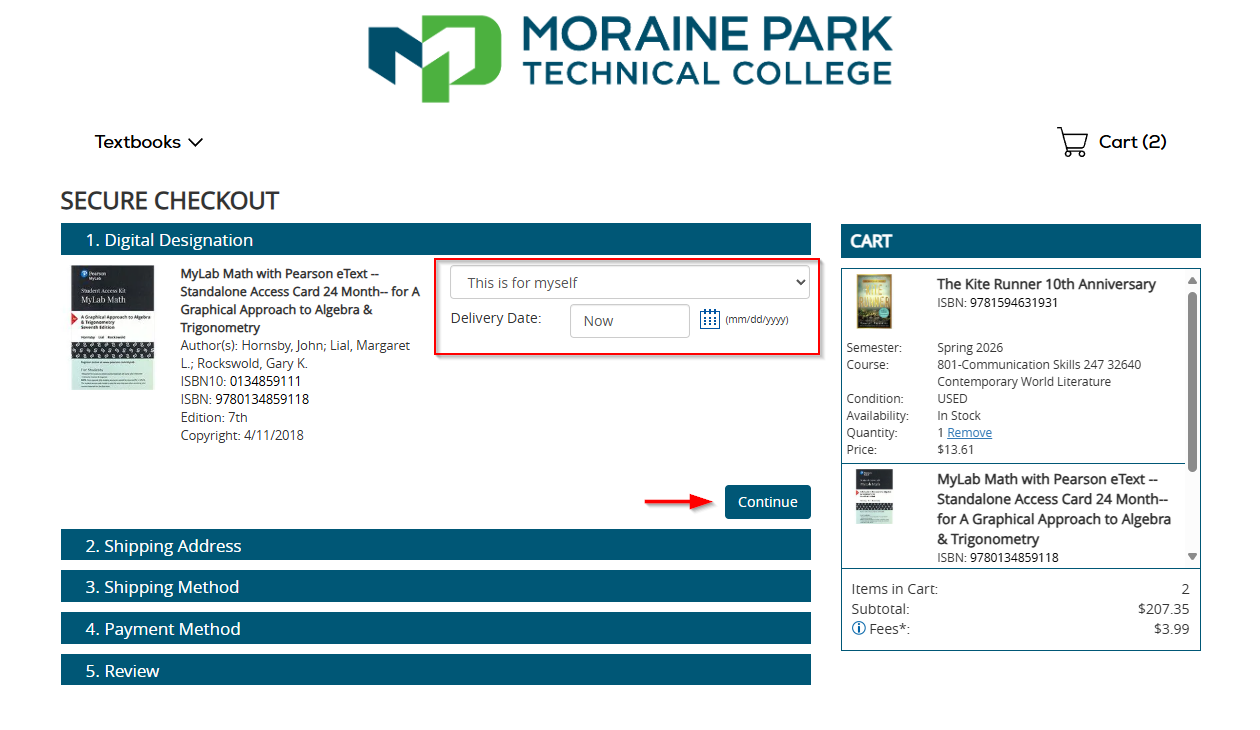
Step 6: If you are purchasing a digital product, select the delivery date, then click Continue.

Screenshot in Shop for Schedule with red box around the Delivery Date option.

Step 7: Select a Shipping Address, then click Continue. (If considering to have your items shipped to MPTC, please review our campus pick up locations and hours below.)

Screenshot in Shop for Schedule with a red arrow pointing at the Shipping Address button, along with a red box around the address required fields, and another red arrow pointing at the Ship to Campus checkbox option.

Step 8: Select a Shipping Method. Then click Continue.

Screenshot in Shop for Schedule with a red arrow pointing to the Choose Shipping Method options.

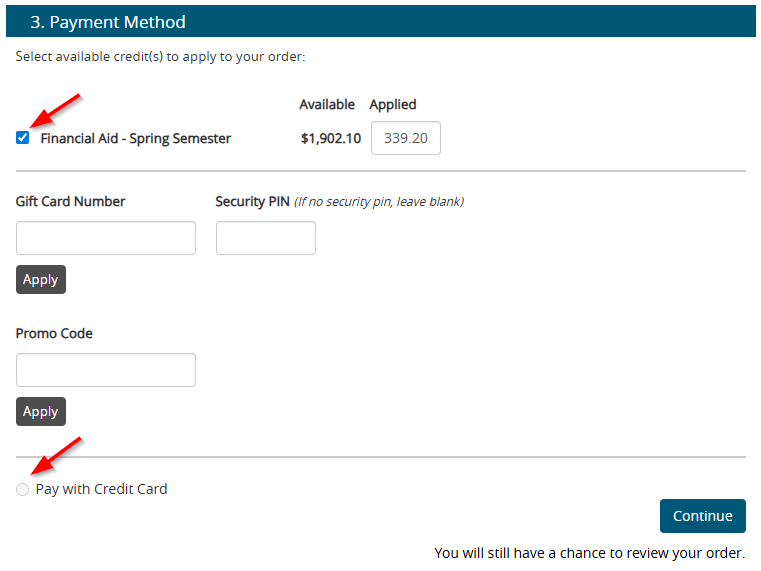
Step 9: Select your Payment Method. Then click Continue. (If you plan on using Financial Aid to purchase course materials, it is important to remember that Financial Aid can only be used during certain dates. (View Guidelines for using Financial Aid)

Screenshot in Shop for Schedule with a red arrow pointing to the Financial Aid button under Payment Method.

Step 10: Review and submit your order.

Screenshot in Shop for Schedule blue bar that says Review
  • Financial aid funds are only available to use at the bookstore during specific dates each semester.
  • If you were offered and accepted awards through myFinancial Aid, the option to use Financial Aid will be available in eCampus when you reach the Payment Method during checkout.
  • If you choose to rent a book and pay with Financial Aid, eCampus will require your credit card information. Your credit card will only be charged if you do NOT return the book on time.

Third Parties/Sponsors that wish to cover the cost of books for students will set up an account directly with eCampus.com. The process is easy!

Just email morainepark@ecampus.com with the following information:

  • Company/Agency Name
  • Contact Name
  • Contact Email (Invoices will be sent to this email)
  • Billing address
  • Contact Phone Number
  • Tax exempt form (if applicable)

Please allow 2-3 business days to get your account set up at eCampus. Once your account has been set up, you will be ready to provide student funding detail, and the following will need to be emailed to morainepark@ecampus.com:

  • Student name(s)
  • MPTC Student ID(s)
  • Amount authorized
  • Expiration date for funds

Once student detail is provided, funds will be added to the eCampus student account(s) within 1-2 business days. Students are then able to apply this to their online purchases.

If an amount or expiration date isn’t specified, $1,000.00 will be the default amount added to the student’s eCampus account, and the expiration date will default to the last day of the semester. Any remaining available funds will fall off on the expiration date.  You will receive an invoice from A Book Company LLC, dba Books by eCampus on a monthly basis for any amounts charged by students.


Follow these instructions if you ordered course materials from eCampus and chose to have them shipped to Moraine Park Technical College.

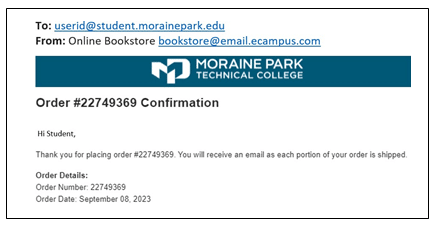
Step 1: Monitor your MPTC email for confirmation that your order was You will receive an “order received” confirmation email (example below).

Step 2: Monitor your MPTC email for notifications from eCampus that your items are ready for pick up.

Step 3: Travel to the campus you chose to have your items shipped to (refer to pick up hours below). Upon arrival, you must show your emailed receipt with barcode to retrieve your

Beaver Dam Campus
Pick up at Spirit Store during these hours:
Monday 10:00 a.m. to 3:00 p.m.
Wednesday 10:00 a.m. to 3:00 p.m.

Fond du Lac Campus
Pick up at Spirit Store during these hours:
Monday 10:00 a.m. to 3:00 p.m.
Tuesday 10:00 a.m. to 3:00 p.m.
Wednesday 10:00 a.m. to 3:00 p.m.
Thursday 10:00 a.m. to 3:00 p.m.

West Bend Campus
Pick up at Spirit Store during these hours:

Tuesday 10:00 a.m. to 3:00 p.m.
Thursday 10:00 a.m. to 3:00 p.m.

If you purchased an e-Textbook or courseware, your item is stored in your eCampus Digital Bookshelf.

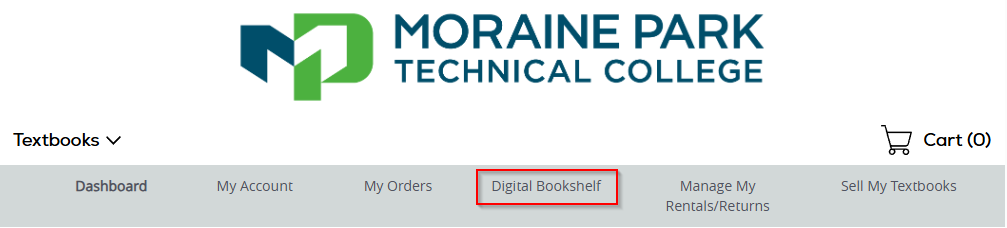
Step 1: Log in at eCampus Dashboard using your MPTC email (username@student.morainepark.edu) and password. When your dashboard appears, click Digital Bookshelf.

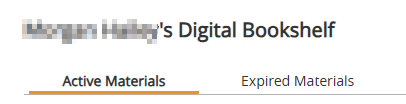
Step 2: Open any of your active materials or view a list of your expired materials.

Screenshot of the eCampus Dashboard with the Active Materials tab highlighted.

NOTE: If you need assistance accessing course materials, you are strongly encouraged to check your MPTC Student email and/or contact your instructor for further information. eCampus also provides helpful information:

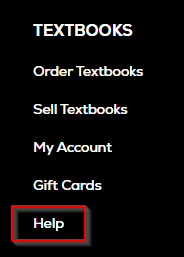
Step 1: Click eCampus Help Desk or scroll to the bottom of any page and click Help.

Screenshot of the eCampus Dashboard with a red box around the Help button.

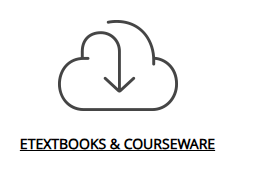
Step 2: On the help page, scroll down to click Scroll down to click eTextbooks & Courseware.

Screenshot of the eCampus Dashboard, with a focus on the Textbooks & Courseware button.

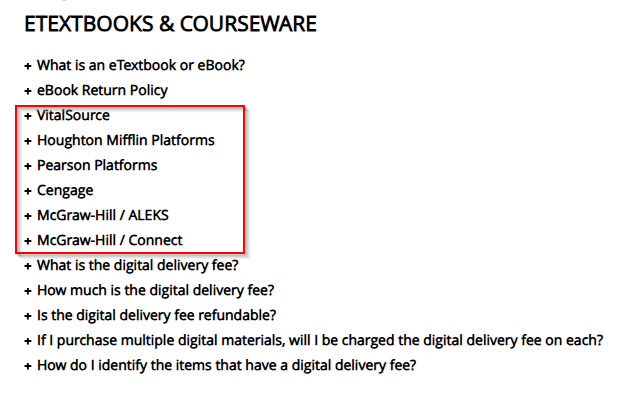
Step 3: Select the company who produced your learning material to show additional instructions for how to log into their product, how to use access codes, and more. Please read these instructions carefully!

Screenshot of the eCampus Dashboard with a red box around the companies who produced learning materials and how to log into their product.
  • Rental due dates vary. Verify your due date by logging into eCampus Dashboard.
  • Online returns and buybacks can be done year-round by logging into the eCampus Dashboard then selecting “Manage My Rentals/Returns” or “Sell My Textbooks”.
  • On-Campus returns and buyback are only available during the last week of Spring and Fall semesters. During this time, students can take books to any MPTC Spirit Store to return rentals or sell purchased books for cash. Spirit Store hours vary by campus.

Your eCampus Dashboard shows an overview of recent activity, including current orders, tracking information (when available), and more.

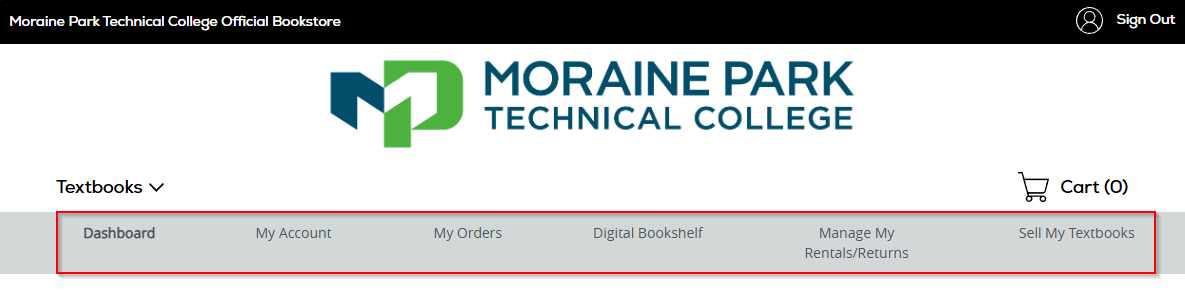
Step 1: After logging in, your dashboard will appear at the top of most eCampus webpages. Click any of the menu options to navigate to other areas of the website.

Screenshot of the eCampus Dashboard with a red box around the top navigation bar.

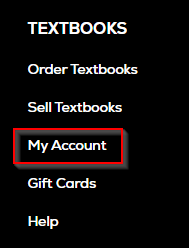
Step 2: If you don’t see your dashboard, scroll to the bottom of any eCampus webpage and click My Account.

Screenshot of the eCampus Dashboard with a red box around the My Account button.

eCampus Helpdesk is your main resource for finding answers to frequently asked questions such as: how to check your order status, how to rent or sell, what happens after you order, and more! If you are unable to find answers, please contact eCampus Customer Service.