
- Go to the Forms listing and find the form using the search box

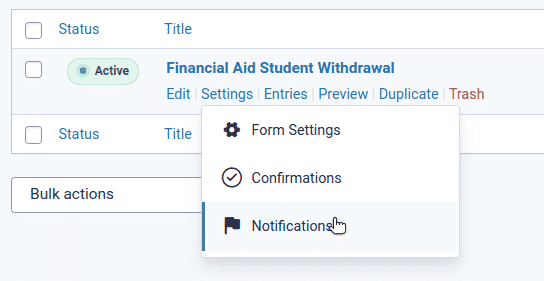
- Hover over “Settings” and select “Notifications”
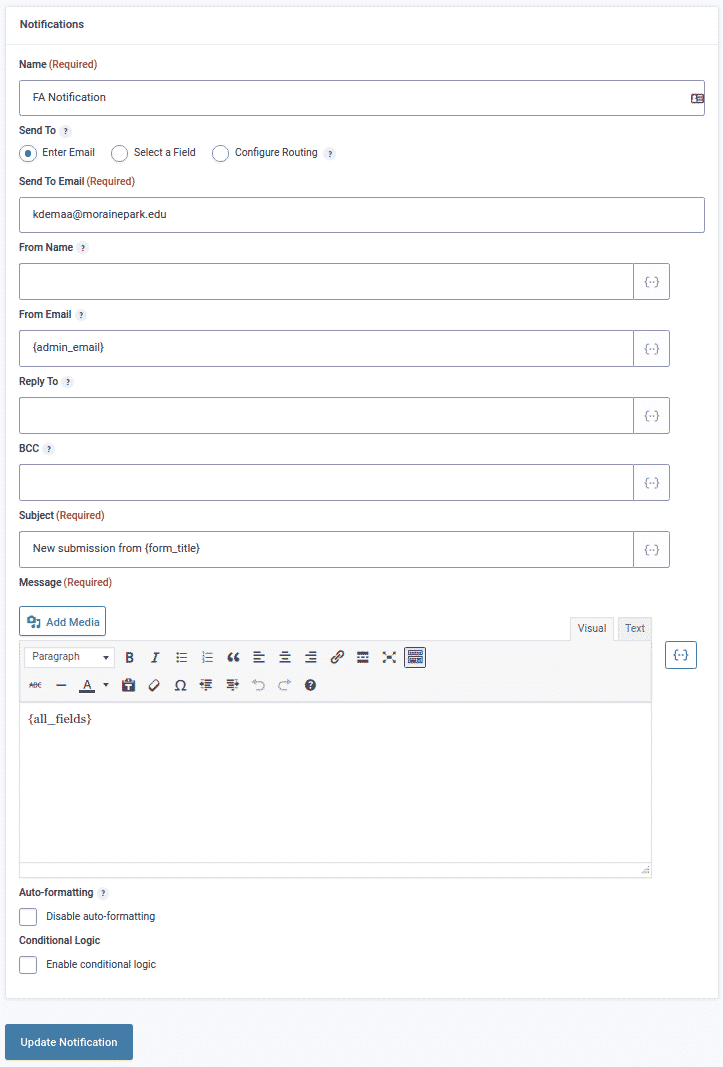
- Edit the existing notification, or, alternatively, add a New.

- Edit/add information to all required fields. Note that you may add multiple email recipients by separating the email addresses with a comma.

If you wish, you may select to populate the various notification fields with submitted data, using the merge tags tool.

For example, the subject line can have the form title added to it using the “form_title” tag enclosed in curly brackets, such as: New {form_title} submission. Note that the message field should typically contain all the data that was submitted using the special “all_fields” tag, such as: {all_fields}. If you’d like to learn more about merge tags, check out the Gravity Forms knowledgebase. - Once done editing, click “Update Notification”.
- Verify the notifications update is working properly by submitting a “test” form submission.
How to change notifications for a Gravity Forms form submission

November 29th, 2021