
IMPORTANT: Please wait until you have received an Account Activation Notification email before attempting to open your MPTC account.
To open your account, you must complete all of the steps below:
Step 1: Open Your Account
- Visit https://account.morainepark.edu/account-utilities/open
- Read and accept the College’s Acceptable Use Policy (Acceptable Use of College Computing Resources Procedure):
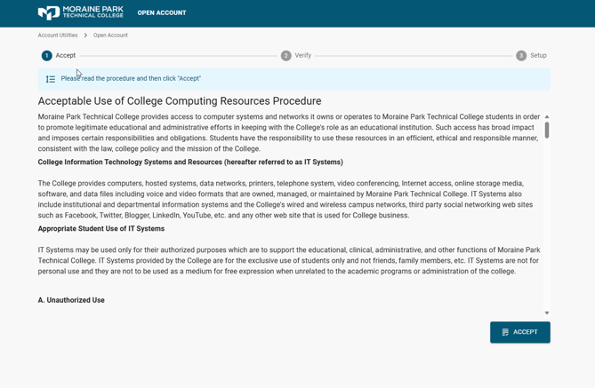
- Scroll to the bottom of the page
- Click the “ACCEPT” button
Step 2: Verify Your Account
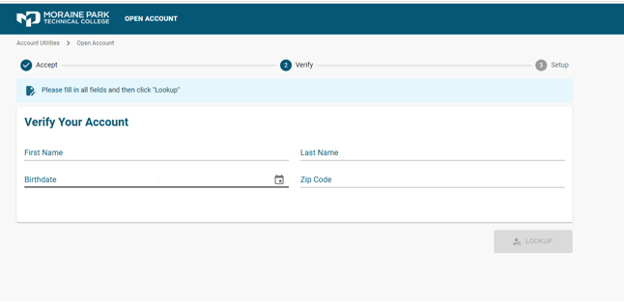
Enter your First Name, Last Name, Birthdate, and High School Zip Code:
- The first initial of your first and last name must be capitalized.
- Enter your birthdate (MM/DD/YYYY) and high school ZIP code.
- Click the “LOOKUP” button.
If your account is found, click your email address to receive a verification link. If no account is found, call the Technology Help Line or email AskIT (AskIT@morainepark.edu) for assistance.
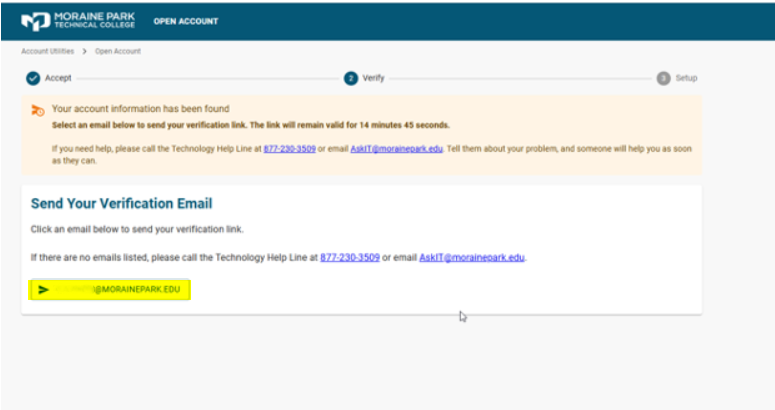
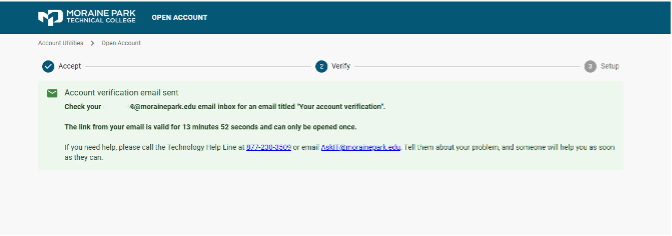
The system will confirm once the account verification email has been sent to you.
Step 3: Activate Your Account
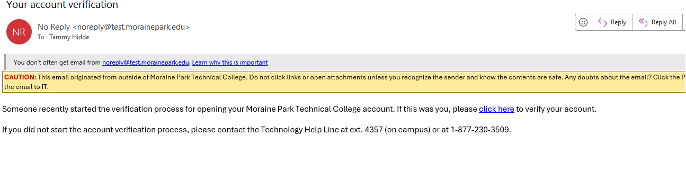
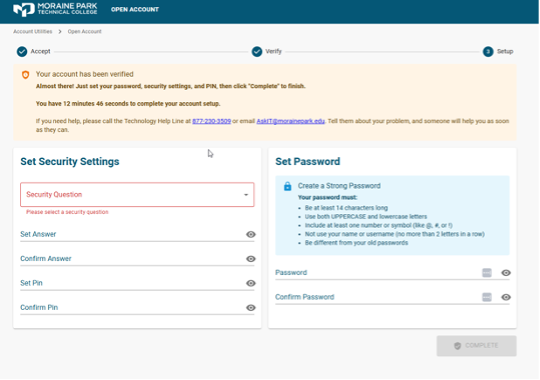
In the email, click on “Click Here” to verify your account. You will then be prompted to:
- Choose a security question
- Set a PIN
- Create an MPTC account password.
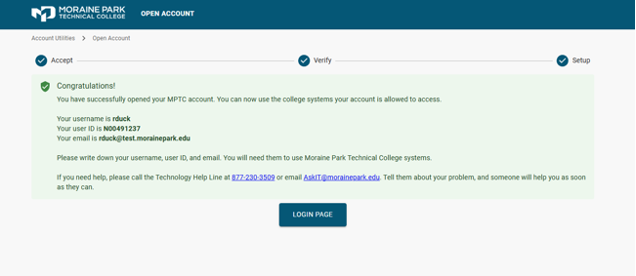
You should now see a message that says:
“Congratulations! You have successfully opened your MPTC account.”
This message will include the following information:
- Your new MPTC email address (used to log in to the dual credit teacher links)
- Your new MPTC username (used to log into WIDS only)
- Your MPTC affiliate/dual credit teacher ID number (starts with an “N”)