

What is Multi-factor Authentication (MFA)?
Multi-factor Authentication (MFA) is an additional layer of security that makes it harder for hackers to log in to your account. With MFA, you will use something you know (your password) with something you have (your phone) to confirm your identity when signing in.
How do I Set Up MFA?
Moraine Park recommends using Microsoft Authenticator for MFA. Microsoft Authenticator is an app that installs on your smart phone. Once installed, approvals are very quick and easy.
If you do not have a smart phone or cell phone, please contact us at AskIT@morainepark.edu and we will provide a process that will work for you.
MFA Set Up Instructions for Students and Faculty
You can either download the PDF guide or follow the instructions below.
Use the following step-by-step instructions to set up MFA on your Moraine Park account.
1. Start MFA Set Up
Go to https://myaccount.microsoft.com to log into your account, enter your staff or student email address, select Next, enter your password and select Sign In.
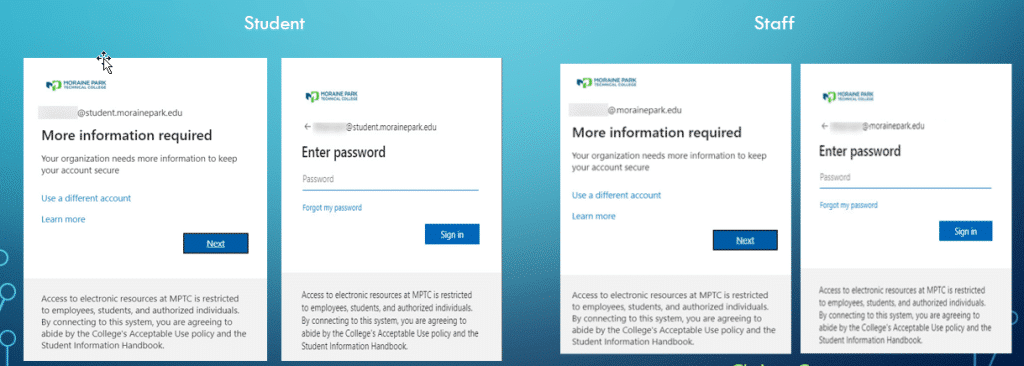
- You will receive the confirmation message below.
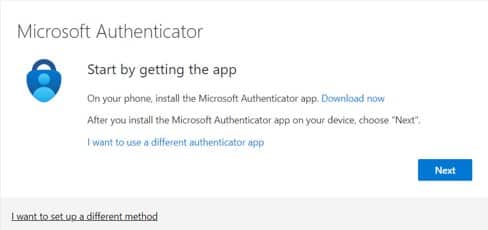
2. Setting Up Microsoft Authenticator App
2.1 Install the App
- On Your Phone Use either Play Store (Android) or App Store (Apple)
- Search “Microsoft Authenticator”, click to download and Install
- It is highly recommended that you restart your phone now (immediately after installing the app) to eliminate potential issues when you get to step 2.2.
- Then open the App on your phone.
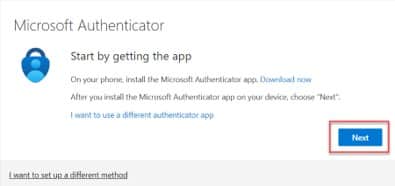
- Then on your computer select Next.
- Click thru all prompts until you see the QR code
2.2 MFA Set Up on your Phone
- Click the “+” sign, in the upper right-hand corner of the Authenticator app.
- Select add a work or school account.
- On your phone, select “Scan a QR Code”(the QR code below is just an example).
- You will need to enable Authenticator to allow to use your camera at least once.
- Scan the code using your phone camera.
- You will get a message confirming your account was added.
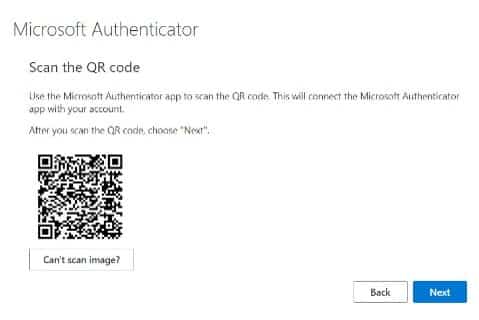
- On your computer screen select Next
- Then select “Approve sign-in” on your phone.
- A test message will be sent and you will need to enter your lock screen pin. (This is the pin used to unlock your phone.)
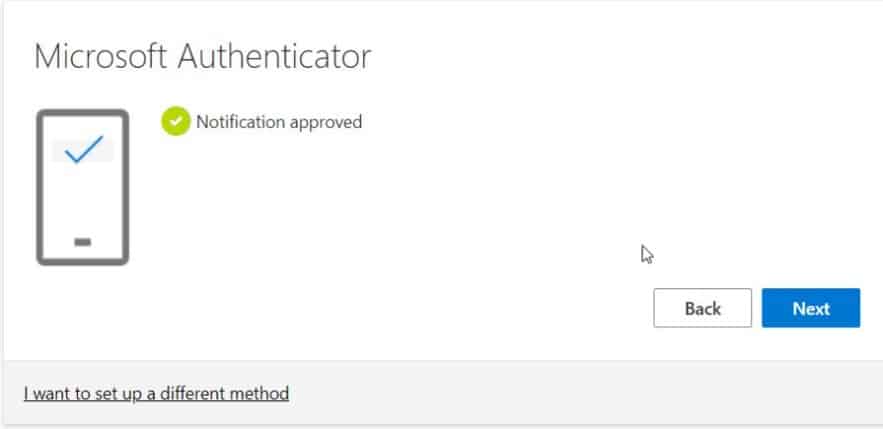
- Your computer will read that your “Notification approved”, select Next on computer screen.
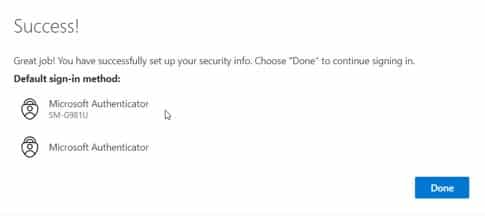
- On your computer screen you will receive a “Success” message.
- Click Done
WARNING
- Please note that you will need your phone available whenever you log into approve the log in.
3. CONGRATULATIONS
You have set up MFA for your Moraine Park Technical College account.
If you have any further questions, please contact us at AskIT@morainepark.edu