

Accessibility
Overview
Moraine Park Technical College is legally required to make digital content accessible to our entire district community. All employees share responsibility for accessibility when creating, editing or publishing content for websites, social media, email, marketing materials, presentations, documents and other digital communications. Consider accessibility from the start, not as a final step. Using our templates is a great way to get started.

Accessibility Checklist
Before publishing or sharing content, check documents for accessibility issues and fix them before sharing.
- Did you add meaningful alternative text to images?
- Did you use sufficient color contrast?
- Did you structure content with properly formatted headings?
- Did you use descriptive links?
- Did you provide accurate captions for video and alternatives for audio content?
Accessibility Checker
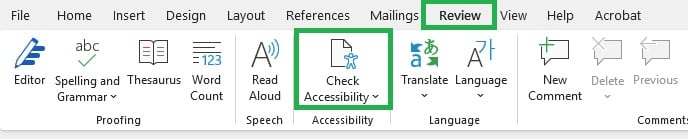
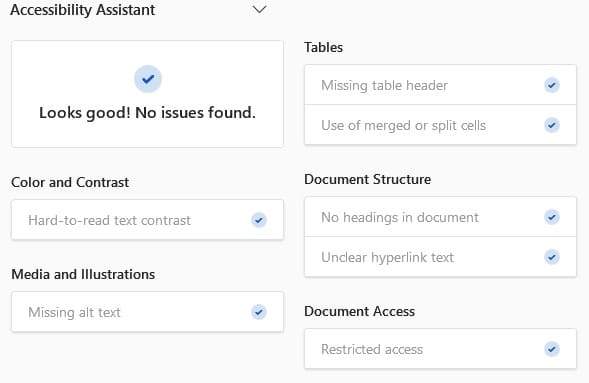
Image Alt Text
Image alt(ernative) text is descriptive text to describe an image so that AI/Search Engines and people using screen readers understand what it is about.
The text needs to convey the same meaning as the image. That is, if someone cannot see the image, they get the important information from the alternative text.
This is a legal requirement and applies to the web, social media, emails and Word/PPT/PDF documents.
Process
- Right-click an image.
- Select “View Alt Text.”
- Add a simple, one-sentence description.

Alt text example: “Smiling Moraine Park student in graduation gown is showing his diploma.”
Dos
- Place the most important information at the beginning.
- Keep it short and limit text to one or two sentences.
- Use punctuation.
- Alt text should not just describe what the image contains but instead should provide context on how the image relates to the page content.
- Add alt text to icons. Images that are functional — for example, images that initiate actions (like submit buttons) and linked images (like in navigation) — need alt text that is the functional equivalent.
- Logos: […] logo. OR Logo of […]
- Headshot of [name].
Don’ts
- Do not include irrelevant information.
- If there’s something that all your readers need to know, put it in the body content or the image caption—not the alt text. This way, it is accessible for everyone.
- Usually, there’s no need to include words like“image”, “icon”, or “picture” in the alt text. In some situations, it may be important to distinguish between paintings, photographs or illustrations, etc. Example: headshot.
Posters
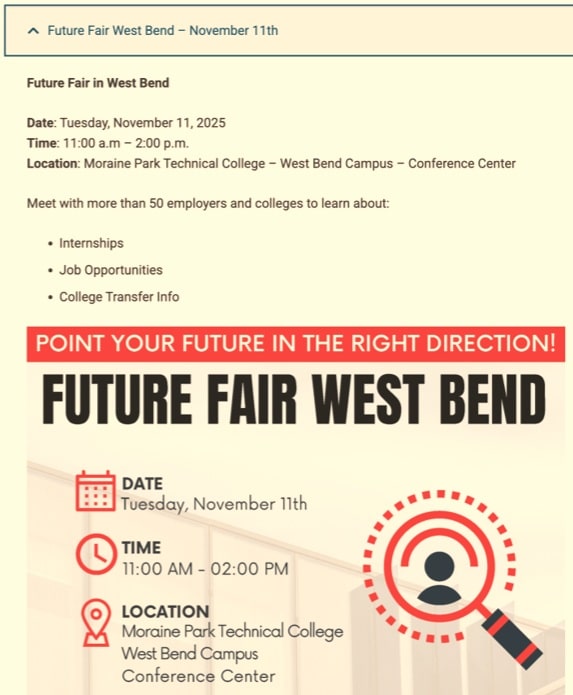
It is always best to include information in a text box on a website instead of relying on an image or PDF alone.
This example shows how a student portal post has the relevant, accessible information above the poster. You can still add the poster with alt text because it helps catch people’s attention!
If the poster is a PDF, thePDF file needs to be made accessible first, then uploaded to libs,and then the URL from the libs file added to the website. It needs to be accessible because people will download and share the documents online. Many web content publishers can help with this process.
We generally avoid PDF documents and instead provide the information as text on the website. This also helps when people access content on their mobile phones.
Color Contrast
A vivid contrast in colors (and a simple font) improves the clarity of text and images alike. Example: dark orange text on a red background is more difficult to read than black text on a light yellow background.
We recommend using Moraine Park brand colors while following WCAG color contrast requirements to ensure text is easy to read. See our brand guide for details.
- Ideal contrast ratio: 4.5 : 1 or more
- Minimum contrast ratio for large text (18 point or 24px) : 3 : 1 or more
- Goal: WCAG AA compliance
- Tool: Contrast Checker, WebAIM
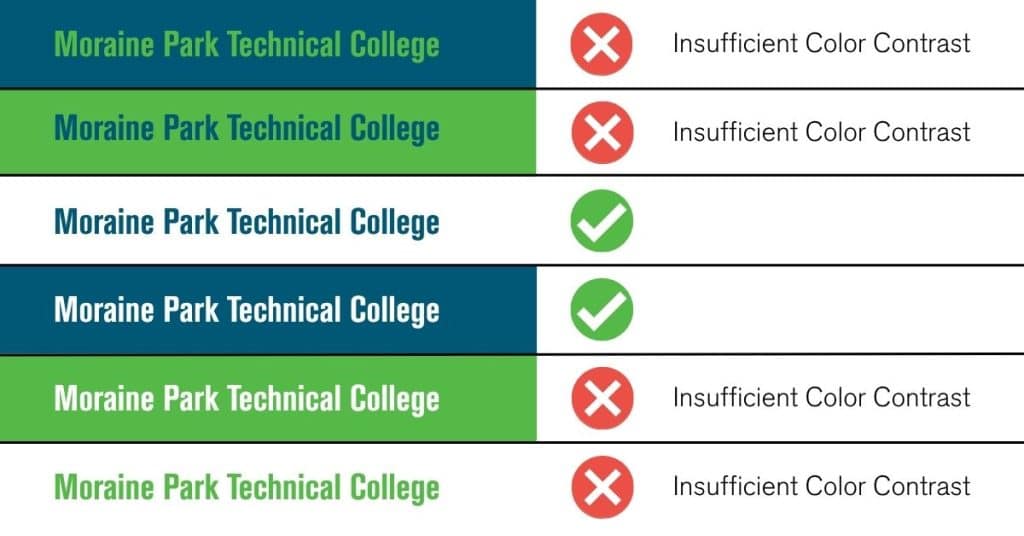
Color Contrast of Moraine Park Brand Colors
WebAIM Color Contrast Checker
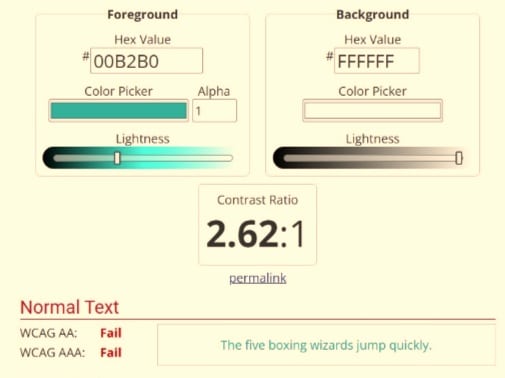
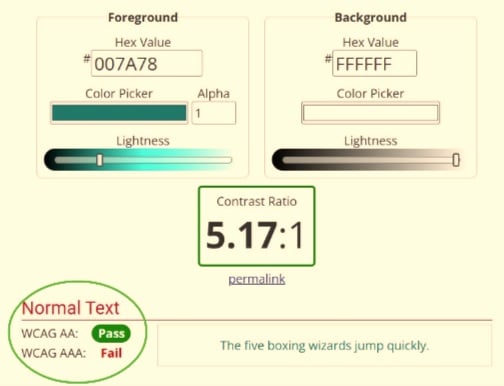
Enter the two color codes you want to assess. The Checker will show you the contrast ratio. It also shows whether the contrast meets WCAG AA or WCAG AAA. We only need to meet WCAG AA compliance.
Example 1: Insufficient Color Contrast of 2.62:1
Example 2: Sufficient Color Contrast of 5.17:1
Page Hierarchy
Use headings to organize information into a logical hierarchy. Properly structured headings help AI/Search Engines and people using screen readers navigate content. They also help all readers scan and understand information.
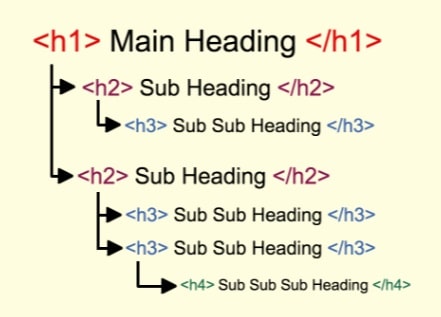
Think of a book or any other document. H1 designates the document title (Wisconsin Cuisine). H2 headings are chapters (Cheese Curd Recipe), and H3 headings are subchapters (Cheese Curd Ingredients) of the respective H2 headings. Screen readers and AI/Search Engines follow the page from H1 to H2 to H3, etc. Mixing them up makes the screen reader jump throughout the document.
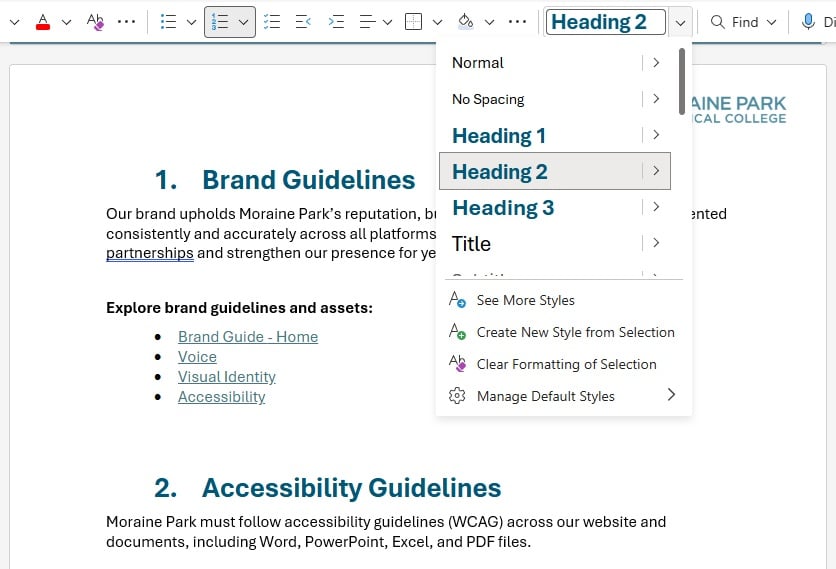
Both WordPress and MS Word templates offer brand-compliant font settings.
Visualization of how screen readers process headings:
Screenshot of our Word Template’s pre-set headings (offline):
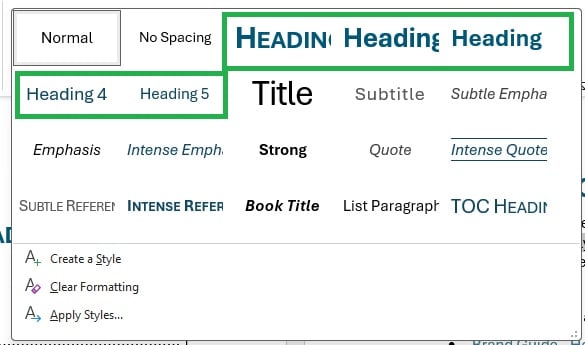
Screenshot of our Word Template’s pre-set headings (online):
Best Practices
- Use one clear page title (H1) for the main heading of a webpage or document.
- Use H2 headings for major sections/chapters and H3 headings for subsections within those sections.
- Do not skip heading levels simply to achieve a particular visual appearance.
- Apply actual heading styles in Word and PowerPoint rather than simply making text larger or bold.
- Use short paragraphs, descriptive subheadings and lists to make information easier to navigate.
- Keep headings descriptive so readers can understand what each section contains.
Descriptive Links
Link text should clearly communicate the destination or action. People using screen readers may navigate through a list of links without hearing the surrounding text, so links must make sense in context.
Best practices
- Use specific link text such as “Explore MPTC programs” or “Download the registration form.”
- Avoid vague phrases such as “click here,” “read more” or “this link” when the destination is unclear.
- Make link purpose clear even when links are read out of context, whenever practical.
- Use descriptive file names for downloadable documents.
Example
Instead of: “Click here to learn about our programs.”
Use: “Explore Moraine Park’s academic programs.”
Closed Captioning
Training
Current training opportunities:
- Digital Accessibility Certificate
- One-on-one consultations
- Accessibility Checker guidance and support
- Web Content Publisher Trainings
Coming soon:
- Closed captioning/video accessibility trainings
- Digital accessibility workshops
- Supported Open Labs
Submit our Training Interest Form to inquire about specific training opportunities.