
Templates
Overview
The following templates follow Moraine Park’s brand guidelines and comply with WCAG. They make it as simple as possible to stay compliant.
The more you use the pre-formatted elements, the fewer accessibility issues you will have to deal with, so please use them for external and internal purposes.

MS Word/Letterhead
This Word file is currently accessible, but don’t forget to use the MS Word Accessibility Checker/Assistant before sharing your document with others.
This template includes a table of contents and information about where to find brand and accessibility guidelines. It uses an H1 heading for the document name and two H2 headings for the chapters. Learn more about using headings to structure a document in an accessible way.
Visit the Accessibility section of Moraine Park’s Brand Guide for more information. Please note that the downloaded and online versions of this file may look different.
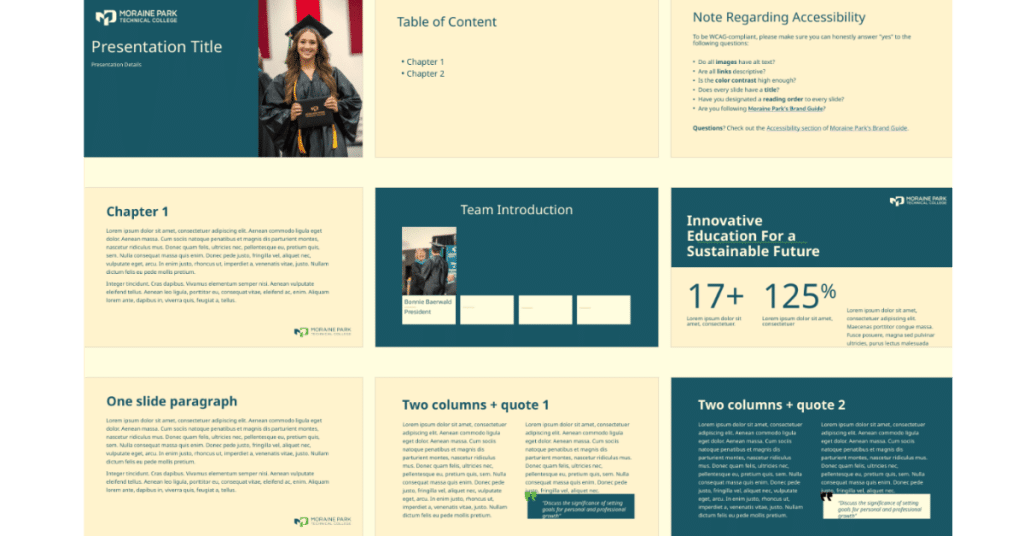
MS PPT
This PPT file is currently accessible, but don’t forget to use the MS Word Accessibility Checker/Assistant before sharing your document with others. The more you use the provided slides, the fewer accessibility issues you will face.
Visit the Accessibility section of Moraine Park’s Brand Guide for more information. The Brand Guide also offers assets like our photo library, color codes and logo files to use for your presentation.
Signature Line
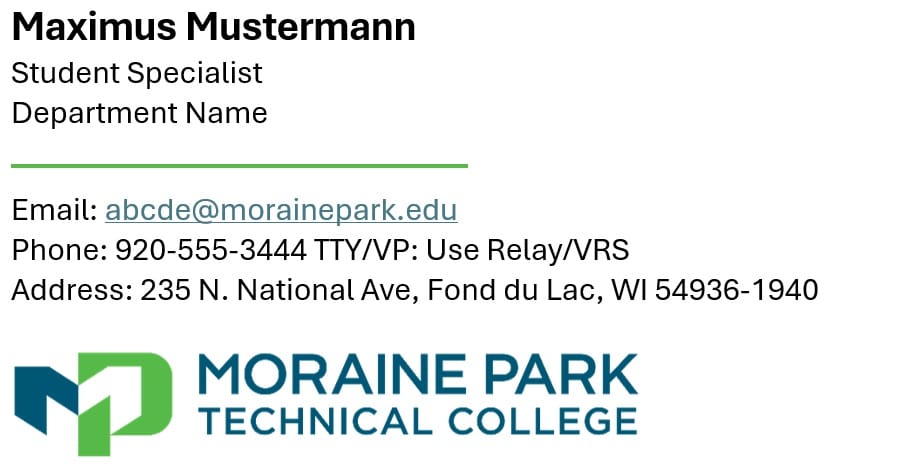
This signature line is accessibility- and brand-compliant because it follows some fundamental rules:
- Don’t use different or unusual fonts.
- Don’t use many different colors.
- Don’t use any graphics besides the logo, which already has alt text: “Moraine Park Technical College logo.”
You may add information like your unit name, fax number and links to relevant pages like sign-up forms, but please avoid unnecessary graphics because WCAG compliance is a federal requirement Moraine Park must follow by 2027. Visit the Accessibility section of Moraine Park’s Brand Guide for more information. Contact the Digital Marketing Manager with any questions.
How do I set up the new email signature line?
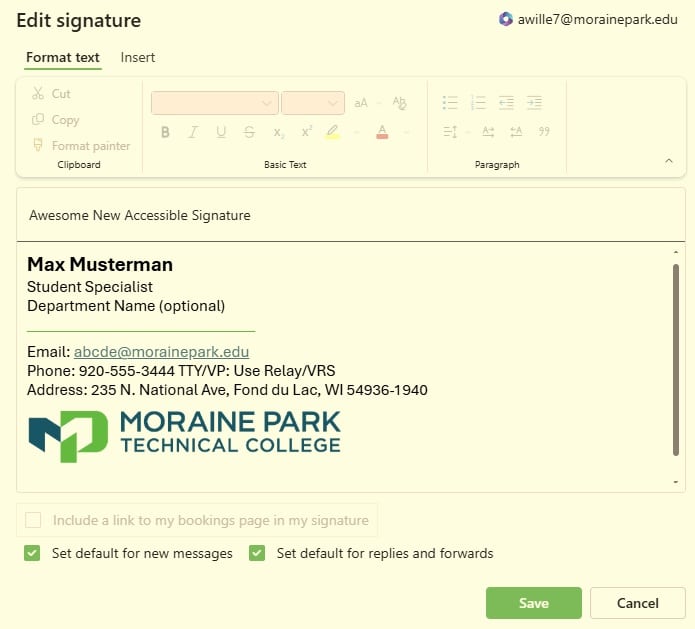
- Access the file.
- Copy the content.
- Visit Outlook’s “Signature Section.”
- Select “Add Signature.”
- Name the new signature.
- Paste the signature in the field below.
- Customize your signature.
- Check the two boxes below: “Set default for new messages” and “Set default for replies and forwards.”